Multi Level Authorisation
 Updated
by Caroline Buckland
Updated
by Caroline Buckland
Available from 11th May 2026!
Financials – General Ledger Journal Multi Level Authorisation
Details of the change
We've introduced a new method that enables multi-level approval for Journals, enhancing the existing approval workflow. This update allows for a more structured and controlled approval process.
Key Features
- Sequential Approval: The first level of approval must be completed before the second level authorisers are notified, ensuring a step-by-step approval process.
- Multi-Level Authorisation: Structures are available to nominate valid authorisers at different levels, providing flexibility and control.
- Proxy Approvers: The new feature also allows for proxy approvers to be designated, ensuring that the approval process can continue uninterrupted even when the initial approver is absent.
The following changes have been made to the Financials System.
- Authorisation Structures
New Structure and Structure Authorisers List and Edit screens, similar to those currently available within the Purchasing and Accounts Payable systems, have been introduced to enable organisations line management structure within Finance to be defined and to hold details of the authorisation limits for each user.
This structure determines who in the Finance team are required to authorise a journal and, also, who can be a proxy for each authoriser in the structure.
- Value Levels
A new option has been introduced to create Value Levels within the structure, allowing you to assign authorised users to specific levels.
- Batch Type Controls
A new setting for the existing Authorisation control setting on the Batch Type screen (MAKL) to denote a new form of authorisation which can be selected for the batch type, i.e. authorisation by “Structure”. When in use, the assignment of authorisers for a journal entered directly within GL will operate in line with the structure’s setup.
A further setting has been added to enable the authorisation structure which is to apply to the new type of authorisation to be specified. Entry of the structure is mandatory when this new form of authorisation is in effect for the batch type as the system will require the structure to determine which authoriser to designate.
- GL Journal Entry
The validation and processing for GL journals that are entered online Journal Entry screen, offline via GL Journal Interface process or via the Excel Journal Upload, have all been modified to take account of the new authorisation settings.
- Where authorisation by “Structure” is in use for the batch type used for the journal, the system will operate as follows:
- Users entering a journal must be defined in the authorisation structure defined on the batch type as this is used to determine who is to authorise the journal. If the user entering the journal is not included in the structure the user will be disallowed from entering the journal online. For journals entered offline, the journal will be flagged as in error when taken on into the GL system.
- Entry of a journal will also be disallowed online or it flagged as in error when taken on offline if the user entering the journal has no parent user, i.e. line manager defined for them within the structure.
- For entry of an online journal to be accepted (or an In Error journal taken on offline be corrected via the Journal List screen), the input user must first be defined in the authorisation structure and have an associated parent user.
- Where the base currency of the value of a journal exceeds the highest approval limit defined for the structure, the journal will be flagged as in error and a BEM alert sent to the user defined as the “Query User”. Typically, they will either be amended to the correct value by the originator or set to “Disabled” so they are then automatically removed in the next run of the GL Audit process.
- Where no errors are identified with the journal, it will be directed to the parent user of the user who entered the journal for authorisation and the status of the journal set to Unauthorised. A BEM alert will also be sent to the designated authoriser to make them aware that a journal has been raised which they are required to authorise.
- Journal Authorisation
To authorise a Journal, this is the same as the current process. The following rules apply for the new structure approval.
The first authoriser the system assigns for a journal will always be the parent user in the structure of the user who entered the journal as defined within the authorisation structure. When that user (or their proxy) authorises the journal the system will check that user’s authorisation limit as defined within the authorisation structure on the Batch Type controls against the value of the journal and where their limit exceeds this value the journal will be authorised, its status updated to “Processed” and transactions created within the GL system for each line on the journal.
Where the value of the journal exceeds the authorisation limit of the designated authoriser following them approving the journal, the system will then assign their parent user as defined within the authorisation structure as the next required authoriser of the journal. A BEM alert will be sent to this designated authoriser to make them aware that a journal has been raised which they are required to authorise. The status of the journal itself will remain as ‘Unauthorised”.
Upon authorisation by that user (or their proxy) the system will operate as per the first authoriser, i.e. if the value of the journal does not exceed their authorisation limit the journal will be authorised, its status updated to “Processed”, transactions created within the GL system for each line on the journal, the diary entry for the designated authoriser removed and details of who also authorised the journal recorded on the system so it is available for enquiry. If the value of the journal also exceeds the authorisation limit of this authoriser, their parent user will be assigned as the next authoriser for the journal and the process will continue until an authoriser is assigned with a sufficient authorisation limit to authorise the journal and not require any further authorisation.
- Journal Rejection
On rejection of a journal its status will be set to a new status of “Rejected”.
Rejected journals will be able to be amended in line with the rejection comments provided. Following on from this, the journal will be re-presented for authorisation and its status returned to “Unauthorised”. Authorisation in this case will then restart from the beginning as if the journal had just been entered.
Alternatively, if the journal is no longer required, it can be disabled whereby it will then be automatically deleted in the next run of the GL Audit process.
- Enquiries
A Journal Authorisers action is already available for selection on the List Journal screen to enable the designated authoriser(s) for the journal to be listed and, if the journal has then been authorised, also show who actually authorised the journal (this may have been a proxy on their behalf).
The user-id of the final person to authorise the GL journal will be stored on each GL transaction within the journal and these details, i.e. authorisation user, date and time, will be available on the GL Transaction enquiry screens.
Note.
The input user, date and time which are displayed for the journal on the GL Transaction Enquiry screens MEJE and MEJF screens will reflect the last person to update the journal and the date and time this took place. The user shown will be the journal inputter if no amendments have been made to the journal following its initial creation. Authorisation or rejection of the journal is not viewed by the system as an update to the journal so these do not impact on what will be shown in the input user, date and time fields.
Example of Approvals
The example scenario below on how the approval can work.
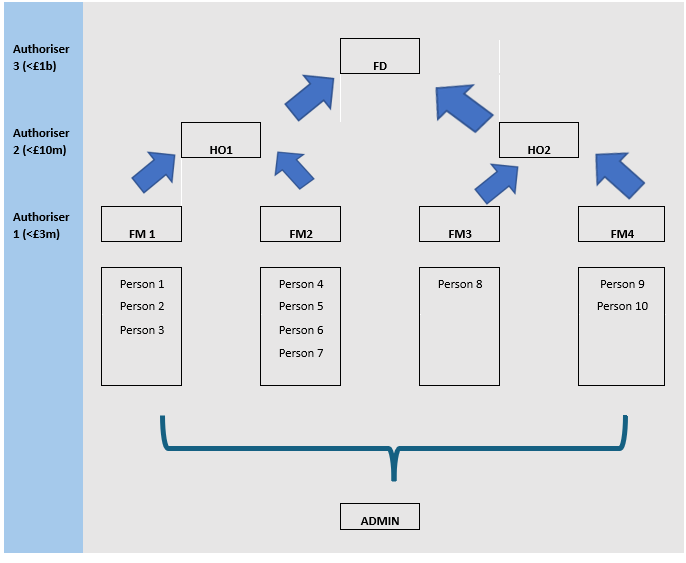
Explanation of Diagram
Persons 1 to 10 represent Finance system users.
Users belong to teams. E.g. Persons 1 to 3 belong to a team with line manager FM1.
FM1 to FM4 represent Finance Managers who lead individual teams.
HO1 to HO2 represent Heads of Finance.
Finance Managers report into a Head of Finance. In the example above, FM1 and FM2 report into HO1 and FM3 and FM4 report into HO2.
Heads of Finance report into the Finance Director, FD representing the Finance Director.
Roles
Journal input is permitted for Finance system users and Finance Managers.
Finance Managers, Heads of Finance and the Finance Director can approve journals.
Rules Determining Approvers
Rule 1: Line manager approval is always required regardless of value
Rule 2: The journal value then determines the number of approvals required
Example Scenarios demonstrating how approval is to operate
- Person 1 raises a journal for £900m
Three approvals are required, i.e.
Person 1’s immediate line manager (FM1) and then, based on the value of the journal, that Finance Manager’s Head of Finance (HO1) and finally the Finance Director (FD)
Person 1 > FM1 > HO1 > FD
- Person 1 raises a journal for £1m
One approval is required, i.e.
Person 1’s immediate line manager (FM1). As the value of the journal is within the line manager’s approval limit, no further approvals are required.
Person 1 > FM1
Person 1 raises a journal for £5m
Two approvals are required, i.e.
Person 1’s immediate line manager (FM1) and then, based on the value of the journal, that Finance Manager’s Head of Finance (HO1).
Person 1 > FM1 > HO1
- Finance Manager FM1 raises a journal for £25m
Two approvals are required, i.e.
Finance Manager FM1’s immediate line manager (HO1) and then, based on the value of the journal, that Head of Finance’s Finance Director (FD)
FM1 > HO1 > FD
- Finance Manager FM1 raises a journal for £5m
One approval is required, i.e.
Finance Manager FM1’s immediate line manager (HO1). No further approvals are required as the value of the journal is within HO1’s approval limit
FM1 > HO1
- Finance manager FM1 raises a journal for £1m
One approval is required, i.e.
Finance Manager FM1’s immediate line manager (HO1). No further approvals are required as the value of the journal is within HO1’s approval limit.
FM1 > HO1
- Note. Even though FM1 is able to approve journals of up to £3m, this has no bearing on the approval of the journal as the first approver must always be the inputter’s line manager irrespective of the value of the journal .
- Person 1 raises a journal for £2b
As this journal exceeds the maximum limit for the Finance Director, the journal value must be considered as having been entered in error. The journal must be directed to a “Query” user who will contact the originator to discuss resolution. Typically, these journals will either be amended to the correct value by the originator or set to “Disabled” so they are then automatically removed in the next run of the GL Audit process.
No authorisers assigned. Journal flagged as “In Error”
Notes
- Users that have been disabled will still receive diary messages but will not be able to sign on to the system or authorise journals while their user ID remains disabled.
- Where authorisation of recurrals is carried out, the authorisation level required will be determined from the value of the postings made to the starting period and not the cumulative value of the batch.
- The authorisation structure which will be used for “Structure” type authorisation will be defined on the Batch Type controls and cannot be overridden at the point of data entry.
- It is not possible to remove users from a GL authorisation structure even if they have outstanding diary messages pertaining to “Structure” type authorisation.
- “Structure” type authorisation applies to both debit and credit totals. Where the system is set-up to allow out of balance journals, the greater of these two values will be used when determining the authorisation value required.
- If a user belongs to an authorisation structure, they must be set-up with sufficient security (Batch Type and Facility Denials) to access the journal.
- Where a journal awaiting authorisation is amended where the type of authorisation which is in effect is “Structure”, then regardless of what has been changed on the journal the approval process will restart from the beginning once again. All existing Diary messages will be deleted and the line manager of the person who amended the journal then assigned as the initial authoriser.
- For “Structure” type authorisation to be used for journals which are interfaced into the Financials GL system, the Update User field on the journal header must be populated with the user-id of the person who raised this journal rather than this be left to default to the schedule / request submission user when not populated. This user must also be defined within the authorisation structure in order for the appropriate to be assigned for initial approval of the journal.
- Prior to this new feature being implemented, all ‘In Error’ entries on the MEDA List Journal screen must be corrected and processed and then the GL Audit process ran to clear down ALL entries from the List.
BEM Alerts
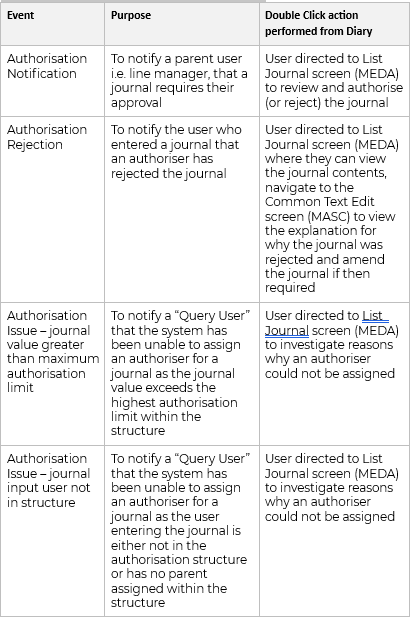
New BEM events and associated BEM actions have been created to enable BEM alerts to be issued for the following GL authorisation related activities where new “Structure” Authorisation setting is in effect:
Setup
- Value Levels
Menu options: Systems Admin>System Wide Controls>User & Roles>Security>Authorisation Value Level List
Use the Insert action.
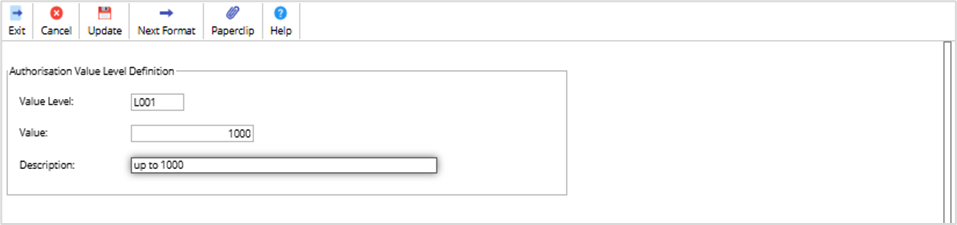
Make an entry in the following fields:
Value Level: code of your choice
Value: value of your choice (denotes maximum value of the Journal that the user can authorise)
Description: description of your choice
Select Update once complete.
Repeat until all value levels are created.#
- Create Authorisation Structure
Menu options:
Menu options: Systems Admin>System Wide Controls>User & Roles>Security>Create Authorisation Structure List
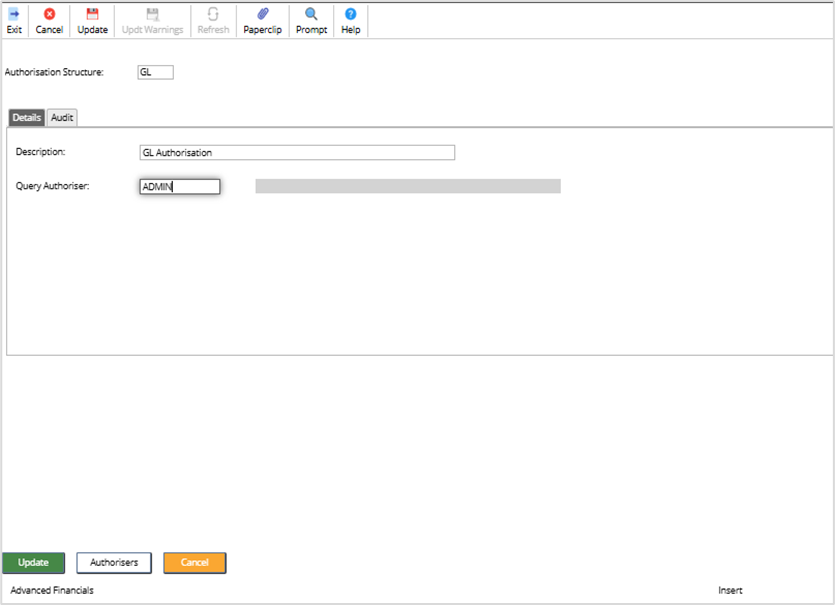
Use the Insert action and make an entry in the following fields.
Authorisation Structure: – two-character code of your choice
Description: – description of your choice
Query Authoriser: – enter a valid, this is used if no other authorisers can be found for the journal.
Select Update once complete.
Exit from the screen, this will return you back to the Authorisation Structure List screen.
- Add Authorisers
From here select the Authorisers button.
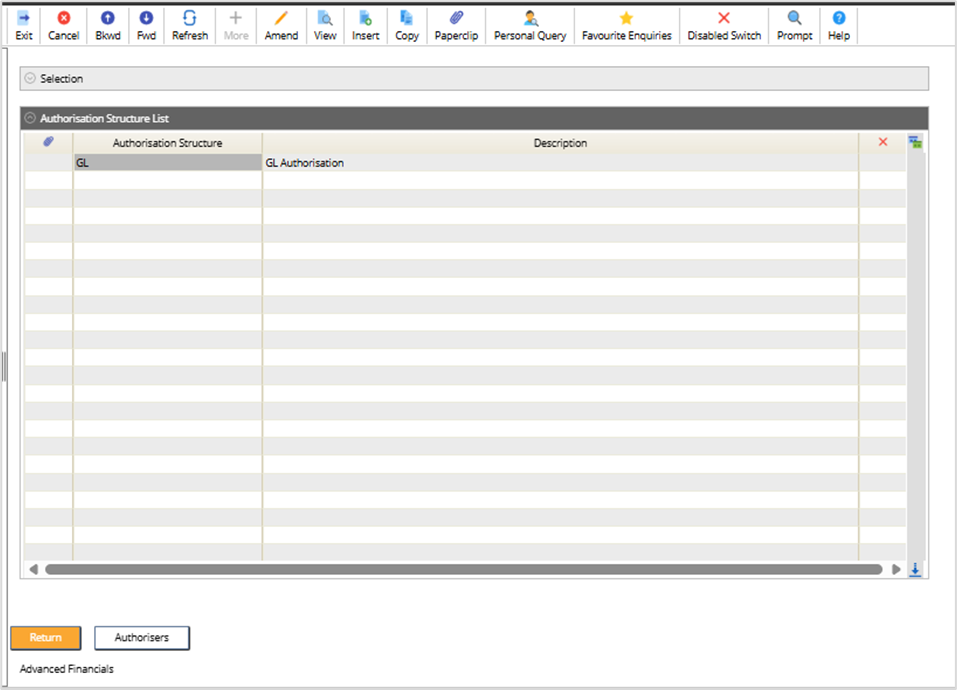
The following screen is displayed, from here select Insert.
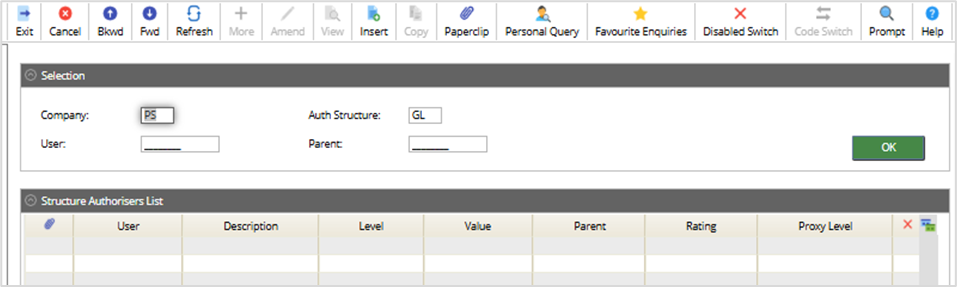
Make an entry in the following fields:
Authorisation Structure: this will have defaulted
User – enter a valid permitted user to authorise the journal (and enter the Journal)
Value Level – enter a pre-defined value level
Parent User – enter the parent user who can authorise on behalf of the nominated user above (the parent must have a higher value level assigned to them)
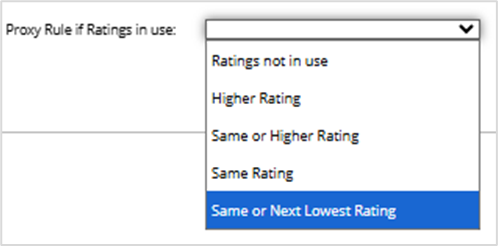
Rating – enter a rating between 1 – 9999 (Optional. A Rating can be used as an alternative to the User's parent to control who is permitted to authorise journals as a proxy on their behalf. Where Ratings are used, Parent User entries are treated as purely memoranda for proxy purposes. If ratings are not to be used, leave this field blank and only parent relationships are in affect.
Proxy Rule if Ratings in use – select an option from the list
In this example, Finance Director is the highest level of the structure so no parent is assigned.
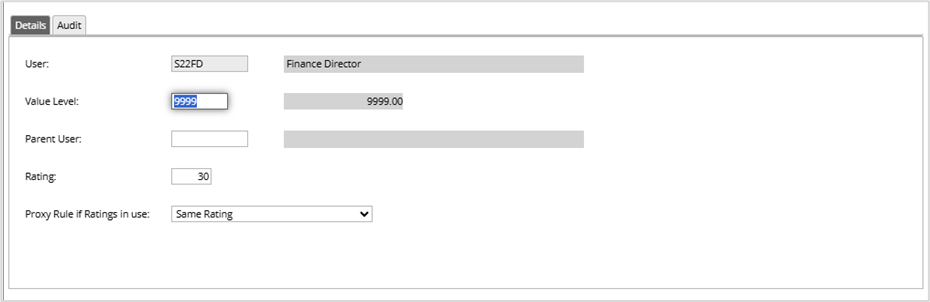
Select the Update action.
Repeat the above process to add in all authorisers and their parents.
Examples below:
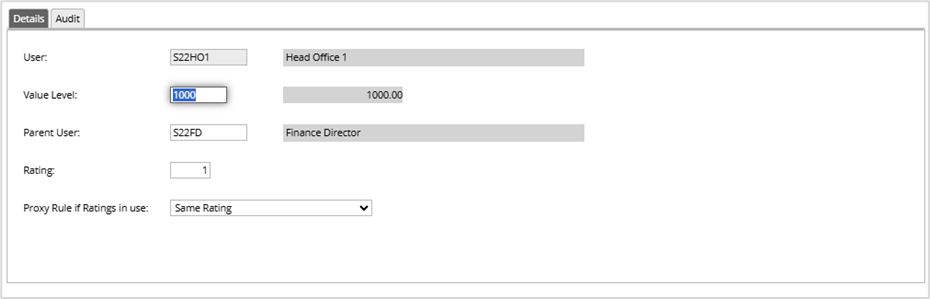
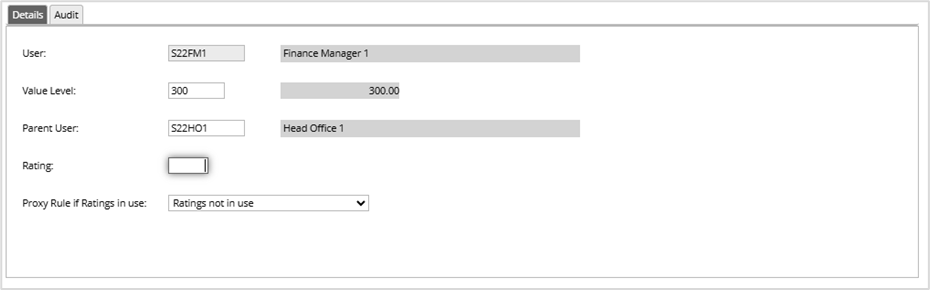
Note: the parents must have a higher value level on the structure before they could be nominated as a parent.
The following is an example of the setup.
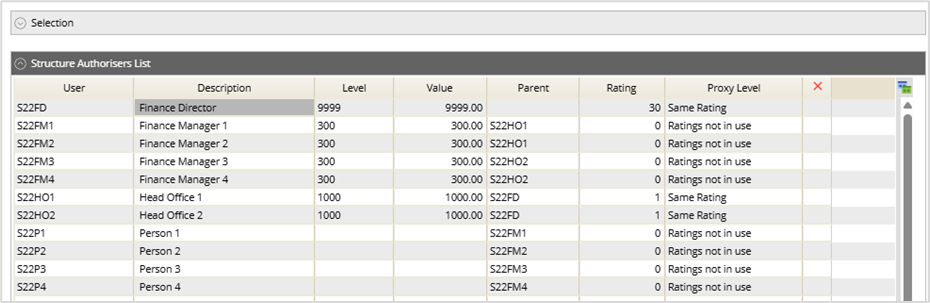
- Batch Types
Access the following menus:
Systems Admin>Module Controls>General Ledger Controls>Batch Types
You can either amend an existing Batch type or create a new Batch Type.
When the following screen is displayed.
Select Structure from the Authorisation drop down menu.
Enter the Structure code you created earlier.
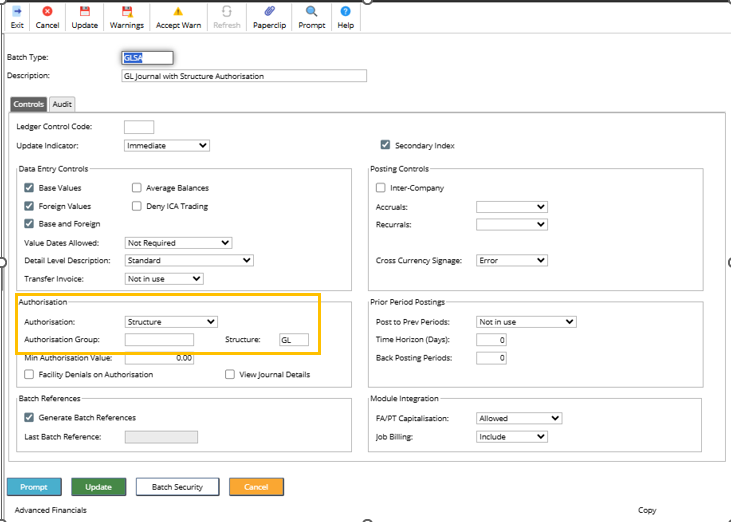
Select the Update action.
Journal Entry
Journal entered for £300. The Authorisers can be viewed from the following option: Journal>Authorisers
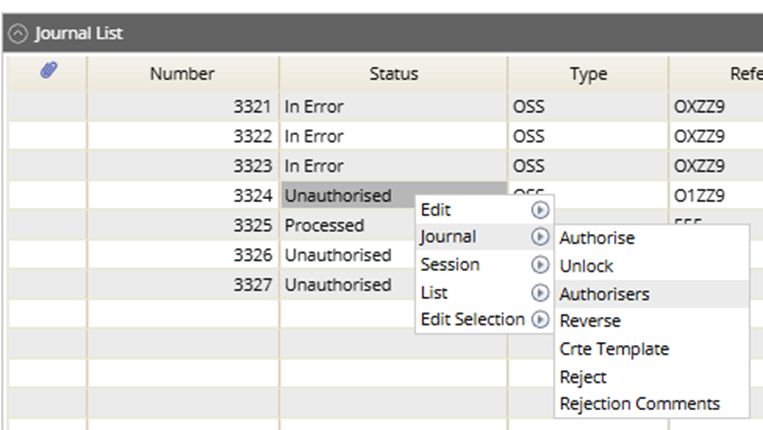
Requires one authoriser.

Journal entered for £30m. The Authorisers can be viewed from the following option: Journal>Authorisers
Requires three authorisers.
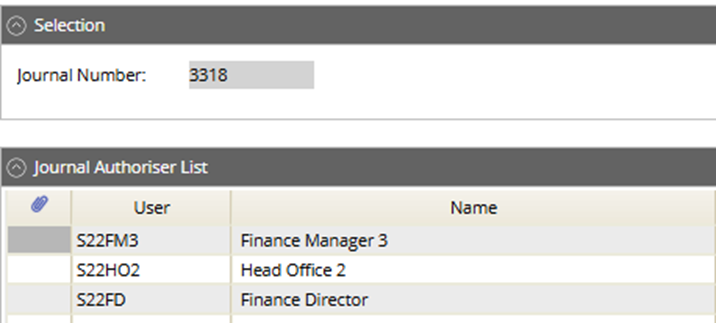
This screen shot shows who authorised the document.

Rejection
If an authoriser chooses to reject the journal, rejection comments can be added.

Rejection comments can be viewed from the List Journal screen.
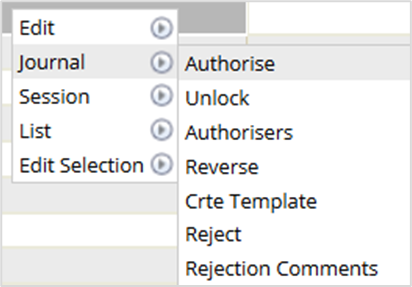
Authorisation of the Journal follows the standard authorisation – see link below for more information.
https://advancedfinancials.helpdocs.io/article/ev5xl0u5y7-journal-entry-copy-and-authorise#authorisation
